
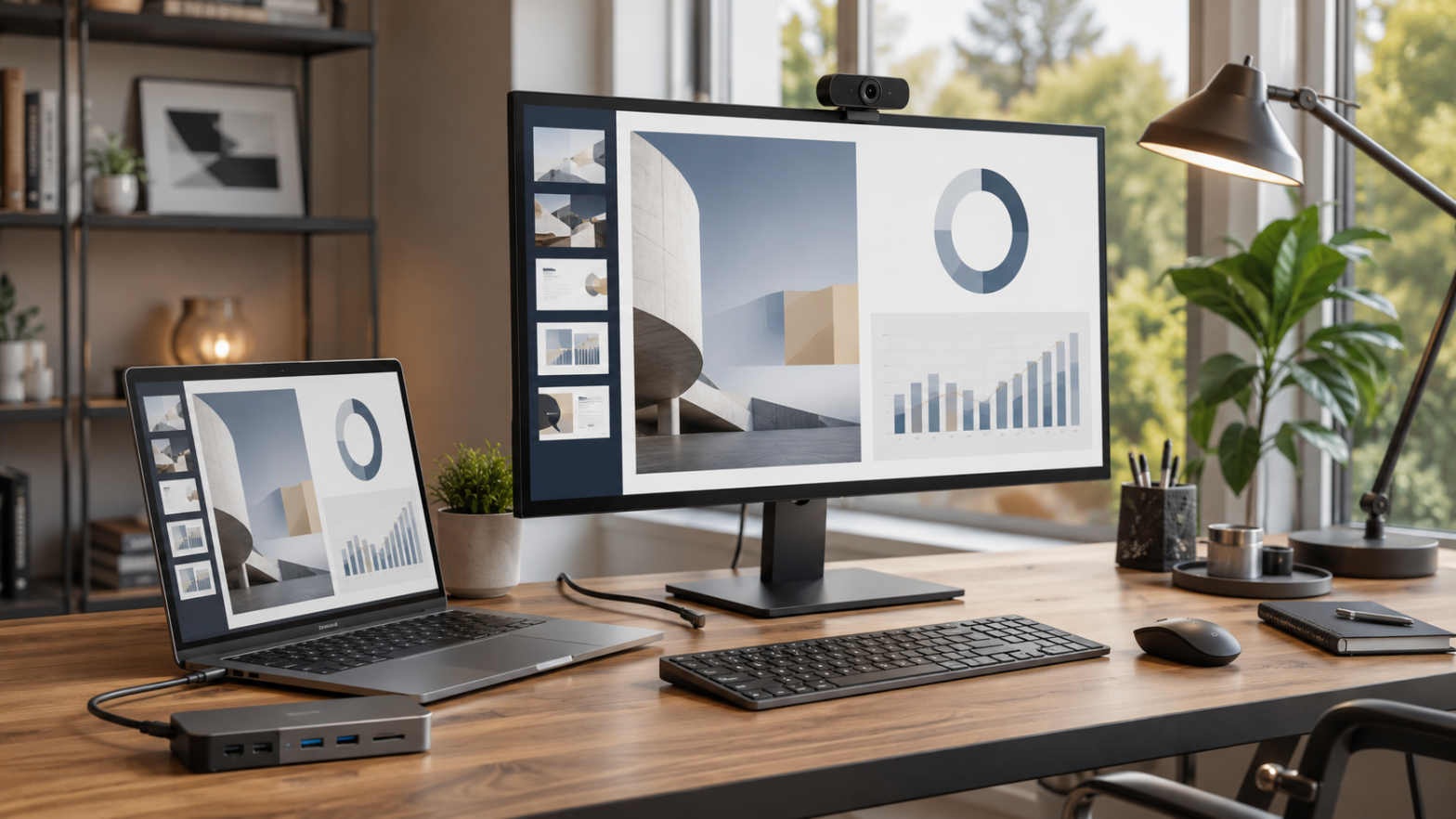
The boundaries between home, office, and meeting room have blurred considerably in recent years. A Samsung Smart TV that serves as your weekend entertainment screen can double as your Monday morning presentation display, your Tuesday video call backdrop, or your Thursday project review station — all without additional hardware purchases. Easy Connection to Screen, Samsung’s PC-to-TV connection app, makes this possible. In this guide, we walk through everything you need to know to use Easy Connection to Screen effectively in both work-from-home and presentation contexts.
What Easy Connection to Screen Actually Does
Easy Connection to Screen is a Windows PC application that allows your Samsung Smart TV to function as a remote monitor for your computer. Once installed and configured, it enables two primary modes:
Screen Sharing: Your PC’s display is mirrored or extended onto the Samsung TV, allowing you to use the TV as a large secondary monitor. Everything visible on your PC screen appears on the TV, and you can navigate using a keyboard and mouse connected to the TV.
PC on TV Mode: This is the full remote desktop experience. Your PC’s entire interface appears on the TV, controlled from the TV’s connected keyboard and mouse. You can run applications, access files, browse the internet, and work on documents — all displayed on the large TV screen, even from across the room or in a different area of your home.
The combination of these two modes covers a wide range of practical use cases, from giving a presentation without connecting HDMI cables to working from your couch while your laptop charges across the room.
The latest version is 6.5.13 and it runs on Windows 10 and Windows 11 (both 32-bit and 64-bit). Both the Samsung TV and the PC need to be on the same Wi-Fi network for the connection to work.
Step 1: Download and Install Easy Connection to Screen
Download the app from easyconnectiontoscreen.org and run the installer. The setup process is minimal:
- Double-click the installer file and accept any security prompts.
- Accept the license agreement.
- Follow the installation wizard through to completion.
- After installation, the app is accessible from your Start Menu and appears in your system tray.
On first launch, you will be prompted to sign in with your Samsung account. This is the same account used to log into your Samsung TV. Signing in with the same account on both devices is what allows the TV to recognize and connect to your PC.
If you do not already have a Samsung account, create one for free at samsung.com. It only requires an email address and takes about two minutes.
Step 2: Prepare Your Samsung TV
On your Samsung TV:
- Navigate to the Smart Hub menu using your TV remote.
- Select Source.
- Choose PC on TV from the available sources.
- Select Windows PC in the PC on TV menu.
A guide will appear on the TV screen explaining the connection steps. Follow along — it will confirm that Easy Connection to Screen needs to be installed on your PC (which you have just done) and prompt you to sign in with your Samsung account on both devices.
Ensure that the Samsung TV is connected to the same Wi-Fi network as your PC. This is a hard requirement — the connection is made over the local network. If your TV is connected to a wired ethernet and your PC is on Wi-Fi, or if they are on different network segments, the connection will fail.
Step 3: Establishing the Connection
With both devices on the same network and logged into the same Samsung account:
- On the TV, press Connect in the PC on TV menu.
- On your PC, Easy Connection to Screen should detect the TV’s connection request and prompt you to confirm.
- Accept the connection on the PC.
- Within a few seconds, your PC’s screen (or a portion of it) should appear on the TV.
If the TV prompts for a PIN rather than detecting the connection automatically, look for the PIN displayed on the TV screen, enter it in the Easy Connection to Screen interface on your PC, and the connection will proceed.
Work-from-Home Use Cases
Using the TV as a Large Secondary Monitor
One of the most practical applications for home office workers is using the Samsung TV as a secondary display. A large screen works exceptionally well for:
- Reference documents: Keep a PDF, spreadsheet, or web page open on the TV while you work on the primary task on your laptop or desktop monitor.
- Video calls: Dedicate the TV to your video conference while your primary monitor handles notes, documents, or the presenter’s slide deck.
- Multi-window productivity: Spread multiple open windows across both the laptop screen and the TV, reducing the need to switch between applications.
To use the TV as an extended (rather than mirrored) display, right-click the Windows desktop, select Display Settings, and choose Extend these displays from the Multiple Displays dropdown. Your TV will appear as a second monitor and you can drag windows onto it.
Presenting From Your Desk to a TV in Another Room
In homes with an open floor plan or where the TV is in an adjacent room visible from your workspace, Easy Connection to Screen allows you to present to family members, housemates, or colleagues visiting your home without having to cluster everyone around a laptop screen.
Configure the connection, switch to Mirror mode (duplicate displays), and whatever is on your laptop screen appears simultaneously on the TV at full resolution. This works equally well for sharing a presentation, demonstrating software, watching a video together, or showing photos.
Reducing Cable Clutter
For home office workers who regularly connect their laptop to an external display, Easy Connection to Screen eliminates the need for an HDMI cable to the TV. The wireless connection frees up desk space and removes one more cable from your workspace.
Presentation Use Cases
Board-Room Style Presentations at Home
If you use your living room or a common area for client calls or team meetings where participants are physically present, Easy Connection to Screen transforms your Samsung TV into a professional presentation display. The key steps:
- Prepare your presentation in PowerPoint, Google Slides, Keynote, or your preferred tool.
- Establish the Easy Connection to Screen link before guests arrive.
- Switch to Extended Display mode and move the presentation window to the TV.
- Launch the presentation in full-screen mode on the TV.
- Use your laptop screen to view presenter notes, monitor the current slide, and control the flow of the presentation.
This setup replicates the split-screen presenter experience of a professional conference room, where the presenter sees their notes and the audience sees the full presentation — all without any additional hardware.
Training and Demonstration Sessions
For remote workers who occasionally host training sessions with in-person attendees, Easy Connection to Screen provides a large, clear display without requiring a projector or dedicated presentation TV. Walk through software demonstrations, explain processes step-by-step, or guide colleagues through a new tool — all displayed at TV scale for easy visibility.
Sharing Content During Collaborative Work Sessions
When working in a team and reviewing documents together, connecting a PC to the TV via Easy Connection to Screen means everyone can see the document clearly, make annotations that are visible to all, and discuss content without straining to read a laptop screen.
Tips for the Best Performance
Use a Strong Wi-Fi Signal
The quality of the connection between your PC and Samsung TV depends heavily on Wi-Fi signal strength. If the TV is far from your router, a poor signal can cause lag, frame drops, or connection drops. Where possible, position your router centrally, or use a Wi-Fi extender or mesh network node near the TV.
For the absolute best performance, consider connecting either the TV or the PC (or both) to your router via ethernet. Easy Connection to Screen does work over Wi-Fi, but wired connections eliminate network-related latency entirely.
Adjust Display Resolution for the TV
Large TV screens often work best with slightly different resolution settings than typical computer monitors. After establishing the connection:
- Go to Windows Display Settings.
- Select the TV display.
- Adjust the resolution to match the TV’s native resolution (usually 1920×1080 for Full HD or 3840×2160 for 4K).
- Adjust the scale (text size) if content appears too small on the TV.
Use the Samsung TV’s Keyboard Shortcut for Input Switching
If you use the TV both for PC connection and normal TV viewing, you will frequently need to switch inputs. Program a quick shortcut on your Samsung TV remote for the PC on TV source to avoid navigating through menus every time.
Keep the App Running in the Background
Easy Connection to Screen is designed to run as a background process. Leaving it running in the system tray means your TV can initiate a connection quickly without waiting for the app to launch. If connection reliability is important for your workflow, ensure the app is set to launch at Windows startup.
Troubleshooting Common Issues
TV Cannot Find the PC
- Confirm both devices are on the same Wi-Fi network. This is the most common cause of connection failure. If your router uses separate SSIDs for 2.4 GHz and 5 GHz bands, ensure both devices are on the same band.
- Check that Easy Connection to Screen is running on the PC (look for the icon in the system tray).
- Confirm both devices are logged into the same Samsung account.
- Restart Easy Connection to Screen on the PC and try again.
- Temporarily disable Windows Firewall to test whether a firewall rule is blocking the connection. If disabling the firewall resolves the issue, add an exception for Easy Connection to Screen rather than leaving the firewall off.
Display Lag or Low Frame Rate
- Reduce the streaming resolution within Easy Connection to Screen settings (if available in your version).
- Move the PC and/or TV closer to the Wi-Fi router or use a wired connection.
- Close bandwidth-intensive background applications on the PC.
- Restart your router if it has been running for a long time without a reboot.
Connection Drops Frequently
Frequent drops are usually caused by Wi-Fi instability. Try a 5 GHz Wi-Fi connection if your router and devices support it, as the 5 GHz band is typically less congested. If drops persist, consider a wired ethernet connection for at least one of the devices.
Screen Appears Oversized or Undersized on TV
Adjust the TV’s picture size/aspect ratio setting (usually found in the TV’s Picture menu). Set it to Just Scan or Screen Fit to display the PC output at its native resolution without cropping or scaling artifacts.
Beyond Work: Other Practical Uses
While this guide focuses on work and presentation scenarios, it is worth noting that Easy Connection to Screen has a variety of additional applications:
- Streaming media that is not available as a Smart TV app: Run the desktop version of a streaming service that the TV’s app store does not support, and watch it on the big screen.
- Casual gaming: Play PC games on the TV from the comfort of your couch using a controller or wireless keyboard and mouse.
- Displaying dashboards or monitoring screens: Home automation dashboards, security camera feeds, or stock market monitors can run on a PC and display continuously on a room’s TV.
Getting the Most from Easy Connection to Screen in 2026
Samsung’s approach to the PC-TV connection has matured significantly, and Easy Connection to Screen 6.5.13 delivers a reliable, versatile experience for users who need their TV to serve double duty. The key to success is a solid network foundation — good Wi-Fi signal, consistent network configuration, and properly aligned Samsung account credentials on both devices.
Once those basics are in place, the range of workflows you can support from a single Samsung Smart TV is impressive. Whether you are delivering a client presentation from your living room, spreading your work across a massive second screen, or simply freeing your desk from cable clutter, Easy Connection to Screen earns its place in the modern home office toolkit.
This site is not affiliated with Samsung or any other brand mentioned. Content is provided for informational and resource purposes only.