
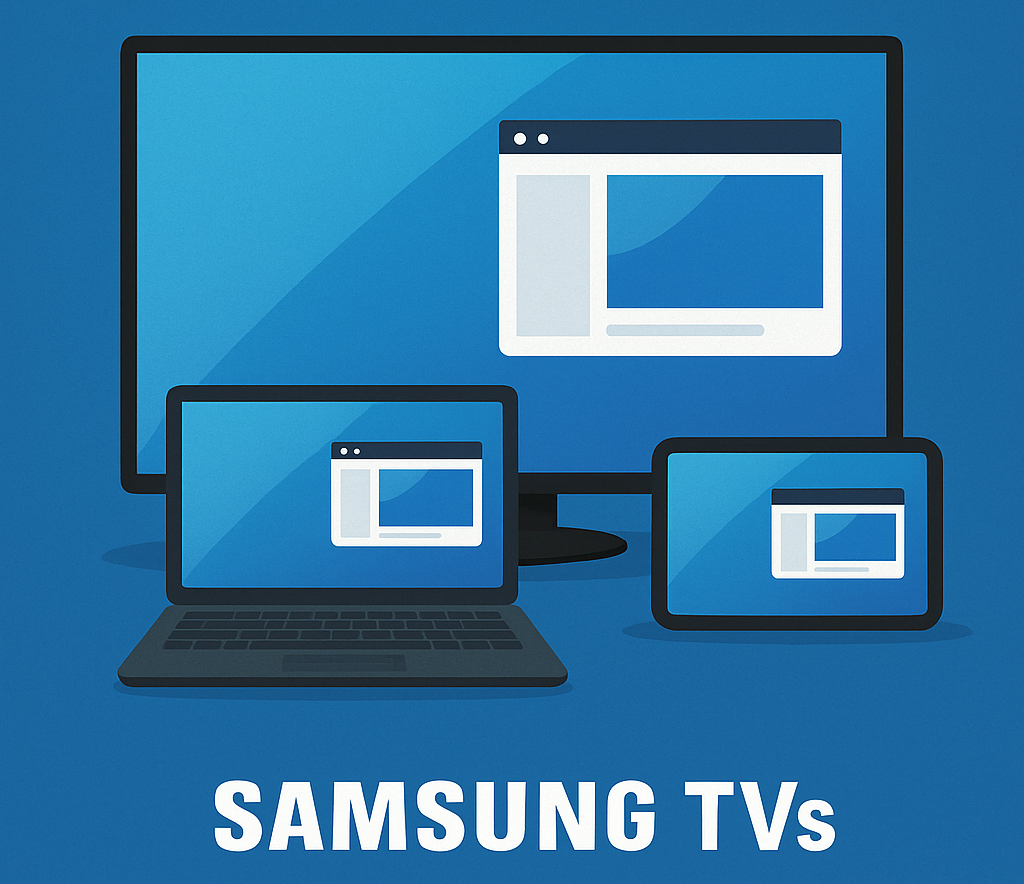
Samsung TVs have long been known for blending sleek hardware with smart software. Over the past few years, one feature has become especially important for modern users: Easy Connection to Screen. Designed to simplify screen mirroring and wireless display connections, this tool allows smartphones, laptops, and tablets to share content with Samsung Smart TVs quickly and seamlessly.
As remote work, streaming, and multi-device ecosystems continue to grow, screen sharing is no longer just a convenience. Whether you’re presenting a slide deck, streaming a movie from your phone, or mirroring a laptop display for gaming, Samsung’s Easy Connection to Screen feature aims to make the process frictionless.
But like any smart technology, updates and upgrades play a critical role in ensuring the feature remains secure, compatible, and efficient. In this guide, we’ll explore what Easy Connection to Screen does, how it works, why updates matter, and how you can stay ahead with the latest improvements for your Samsung TV.
What Is Easy Connection to Screen?
Easy Connection to Screen is a wireless display feature designed for Samsung Smart TVs that allows users to mirror or extend their device screens directly onto the television.
Instead of relying on HDMI cables or external adapters, users can connect devices such as:
- Windows laptops
- Samsung smartphones
- Android tablets
- Compatible mobile devices
The feature uses wireless display technologies such as Miracast and Wi-Fi Direct to transmit video and audio signals between devices.
Once connected, the TV becomes a large external display for your device. This makes it useful for both entertainment and productivity.
Why Screen Mirroring Matters Today
In today’s connected homes and workplaces, screen mirroring has become one of the most widely used smart TV features.
Users frequently rely on screen sharing to:
- Stream videos from mobile apps
- Display photos and videos from phones
- Present slides or documents in meetings
- Play mobile games on a larger screen
- Collaborate during remote work sessions
Samsung’s Easy Connection to Screen simplifies these tasks by providing a quick, wireless connection without complicated setup steps.
But ensuring the feature continues to work smoothly requires ongoing updates.
How Easy Connection to Screen Works
At its core, Easy Connection to Screen relies on wireless display protocols that allow two devices to communicate directly.
Here’s a simplified breakdown of how the process works:
- Your device searches for compatible wireless displays.
- The Samsung TV appears in the available devices list.
- You select the TV and confirm the connection.
- The device establishes a wireless video stream.
Once connected, your TV displays your device’s screen in real time.
The system supports two common display modes:
Screen Mirroring
In mirror mode, the TV shows exactly what appears on your device screen. This is ideal for streaming videos, browsing photos, or demonstrating apps.
Extended Display
Some systems allow the TV to act as a second monitor, expanding your workspace rather than duplicating it.
This feature is particularly useful for productivity tasks such as presentations or multitasking.
Why Updates Are Important for Easy Connection to Screen
Like any smart technology, wireless display tools must evolve to keep up with new devices, operating systems, and network environments.
Samsung regularly releases updates that improve Easy Connection to Screen in several ways.
Improved Device Compatibility
New smartphones, tablets, and laptops are released every year.
Updates ensure that Samsung TVs remain compatible with the latest devices and operating systems.
Without updates, users may experience connection failures or limited functionality.
Performance Improvements
Wireless screen sharing depends on stable network communication.
Software updates often improve:
- Connection speed
- Video streaming quality
- Latency reduction
- Connection stability
These improvements help eliminate lag and buffering during screen sharing sessions.
Security Enhancements
Because wireless display features involve data transmission between devices, security is critical.
Updates may include:
- Encryption improvements
- Network authentication enhancements
- Protection against unauthorized connections
Keeping your TV updated helps prevent potential vulnerabilities.
Bug Fixes
Even well-designed software can encounter occasional issues.
Updates resolve common problems such as:
- Connection timeouts
- Audio synchronization errors
- Display glitches
- Device detection failures
Installing updates ensures the feature continues working smoothly.
Recent Improvements to Easy Connection to Screen
Samsung frequently enhances its smart TV ecosystem, and Easy Connection to Screen has benefited from several recent improvements.
Faster Device Discovery
Newer firmware updates improve how quickly devices detect compatible Samsung TVs.
This reduces the time needed to establish connections.
Better Windows Integration
Recent updates have strengthened compatibility with Windows wireless display features, allowing laptops to connect more reliably using built-in screen casting tools.
Enhanced Multi-Device Support
Some newer Samsung TVs now support connecting multiple devices more efficiently, making it easier to switch between phones, tablets, and laptops.
Improved User Interface
Samsung’s smart TV interface continues to evolve.
Recent updates have streamlined the screen mirroring menus, making it easier for users to find and activate Easy Connection to Screen.
How to Check for Updates on Your Samsung TV
Keeping your Samsung TV updated is straightforward. Most modern models include built-in update tools within the settings menu.
Follow these general steps:
- Press the Home button on your Samsung remote.
- Navigate to Settings.
- Select Support.
- Choose Software Update.
- Select Update Now.
Your TV will check for the latest firmware and install it if available.
For convenience, you can also enable automatic updates so the TV installs improvements as they are released.
Tips for Optimizing Screen Mirroring Performance
Even with the latest updates, certain factors can affect wireless screen sharing performance.
Here are some best practices to ensure the best experience.
Use a Stable Wi-Fi Network
Wireless display connections rely heavily on network quality.
For optimal performance:
- Use a strong Wi-Fi signal
- Avoid crowded networks
- Position devices close to the router
A stable network reduces lag and improves video quality.
Keep Devices Updated
Screen mirroring compatibility depends on both the TV and the connected device.
Make sure your:
- Smartphone
- Laptop
- Tablet
are also running the latest operating system updates.
Reduce Network Interference
Other devices on the network can sometimes interfere with wireless display connections.
Streaming services, large downloads, or online gaming may impact performance.
Limiting network traffic during screen sharing sessions can help.
Restart Devices Occasionally
If connection problems occur, restarting both the TV and the connecting device often resolves temporary issues.
This refreshes network connections and clears cached processes.
Upgrading Your Samsung TV Experience
While updates improve existing features, upgrading your overall setup can enhance screen sharing even further.
Consider a Newer Samsung Smart TV
Newer Samsung TVs include improved processors, enhanced Wi-Fi capabilities, and updated smart platforms that support faster and more reliable screen mirroring.
Recent models often feature:
- Improved wireless connectivity
- Faster smart interfaces
- Enhanced multi-device support
These upgrades provide a smoother Easy Connection to Screen experience.
Integrate with the Samsung Ecosystem
Samsung devices work best together.
Users with Samsung smartphones or tablets can take advantage of deeper integration features, including faster pairing and more seamless screen sharing.
Use SmartThings for Device Management
Samsung’s SmartThings platform can help manage connected devices within a smart home ecosystem.
This integration can simplify the process of discovering and connecting compatible devices.
Common Issues and Troubleshooting
Even with updates, occasional issues may occur when using screen mirroring features.
Here are some common problems and solutions.
TV Not Appearing in Device List
Ensure both the TV and device are connected to the same Wi-Fi network.
Restarting the devices often resolves discovery issues.
Lag or Delayed Video
Network congestion or weak signal strength can cause lag.
Moving closer to the router or reducing network activity can improve performance.
Connection Drops
Software updates frequently address stability issues.
If problems persist, check for firmware updates on the TV and device.
The Future of Wireless Screen Sharing
Screen sharing technology continues to evolve rapidly.
Future improvements may include:
- AI-powered connection optimization
- Lower latency wireless display protocols
- Better integration with smart home ecosystems
- Enhanced multi-device collaboration tools
Samsung is expected to continue refining its screen mirroring technologies as smart TVs become increasingly central to digital living spaces.
Samsung’s Easy Connection to Screen feature makes it simple to share content from phones, tablets, and computers directly to your TV. Whether you’re streaming videos, presenting work, or browsing photos, wireless screen mirroring provides a convenient and flexible viewing experience.
However, like any modern smart feature, its performance depends heavily on regular updates and system improvements.
By keeping your Samsung TV firmware up to date, maintaining strong network connections, and staying informed about the latest enhancements, you can ensure that Easy Connection to Screen continues to deliver a smooth and reliable experience.
As smart TVs become increasingly central to home entertainment and productivity, tools like Easy Connection to Screen will only grow more powerful, helping users connect devices effortlessly and enjoy a more seamless digital ecosystem.